Evaluate Seedream 5.5 for repeated revisions, transparent assets and text-heavy photo creatives; keep Seedream 5.0 Pro when an approved design workflow already works, and consider Seedream 4.5 when your provider offers the larger output you need. Seedream 5.0 is a family label, so check whether a listing means Pro or Lite before comparing specifications or prices. Below are the documented differences, public platform costs and reproducible briefs for three 5.5 upgrade areas.
Key Takeaways
- The upgrade is about production control. ByteDance highlights steadier edits, native RGBA output, and more natural images with clearer text in its Seedream 5.5 announcement.
- Older versions already edit images and render text. Pro adds design tools such as regional selection and layer separation; 4.5 already emphasizes reference fidelity and typography. The comparison below shows the distinction.
- A higher version number does not guarantee larger output. Check the named provider and output tier, especially if you need 4K.
- Newer is not always cheaper. The price table separates dollars, credits, Gems and reference-image charges. Public prices were checked on November 12, 2026.
- The images illustrate the prompts, not Seedream performance. ChatCut offers Seedream 5.5, but the five images here were generated with GPT Image 2.6. Seedream 5.5 result to be added; no generated 5.0 Pro or 4.5 comparison images are included.
Seedream 5.0, Seedream 5.0 Pro and Seedream 4.5: which version is which?
Searching for “Seedream 5.0” can lead to different models. Lite and Pro are separate variants, not interchangeable names for the same endpoint. ByteDance’s Lite introduction emphasizes reasoning and instruction understanding; its Pro introduction focuses on design layouts and interactive editing.
| Version | Documented emphasis | When to consider it |
|---|---|---|
| Seedream 4.5 | Reference-image consistency, material detail and typography, shown in the official gallery | An established reference-based workflow, or a provider’s larger output tier |
| Seedream 5.0 Lite | Reasoning and interpreting the intent of a brief, described in the official introduction | A separate option to evaluate when understanding a complex brief matters |
| Seedream 5.0 Pro | Dense layouts, regional editing, layer separation and multilingual rendering, in the official introduction | A design workflow that depends on those tools or an existing approved look |
| Seedream 5.5 | Edit stability, native alpha, realism and small text, in the official announcement | New assets needing revision, compositing or exact copy |
Pro’s announcement is dated July 8, 2026; 5.5’s is dated November 9, 2026. They are image models. Turning a still into motion requires a video model, covered in our Seedream series guide and image-to-video workflow.
Seedream 5.0 Pro vs Seedream 4.5 vs 5.5: capabilities and resolution
| Question | Seedream 4.5 | Seedream 5.0 Pro | Seedream 5.5 |
|---|---|---|---|
| Can it edit a reference image? | Yes; reference fidelity is a documented focus | Yes; adds interactive regional guidance and layer separation | Yes; emphasizes keeping untouched content stable through revisions |
| What about text? | Typography and dense text are already documented | Dense information layouts and multilingual text | Further emphasis on small, crowded text and complex letterforms |
| What changes for transparent assets? | The official gallery is not a specification for direct RGBA generation | The launch shows separation into layers, including transparent elements | Native generation with full or partial transparency is an announced capability |
| Example public output tiers | BytePlus: 2K, 4K | BytePlus: 1K, 1.5K, 2K | Higgsfield: 1K, 1.5K, 2K |
| Main reason to keep or evaluate it | Reference fidelity or a required size | Existing design workflow and tools | Revision stability and reusable assets |
Capability sources: ByteDance 4.5, 5.0 Pro, and 5.5. Output tiers come from the BytePlus image-generation guide and Higgsfield’s settings guide; they describe those routes, not every integration.
Is Seedream 5.0 Pro a 4K upgrade over 4.5?
Not on the BytePlus route above. The same BytePlus guide lists 2K, 3K and 4K for 5.0 Lite, which also shows why “Pro” is not a resolution ranking. On Mage, 5.5 and Pro stop at 2K while 4.5 offers 2K, 3K and 4K.
Ask whether a provider’s larger download is model output or a separate upscale. Also check its pixel dimensions: a tier called 1K does not necessarily mean a square image. Pick Seedream 5.5 in ChatCut’s model menu, then check the available size and ratio options and the credit cost shown before you generate; check the downloaded file for its actual pixel dimensions.
Three Seedream 5.5 upgrade areas: reproducible image examples
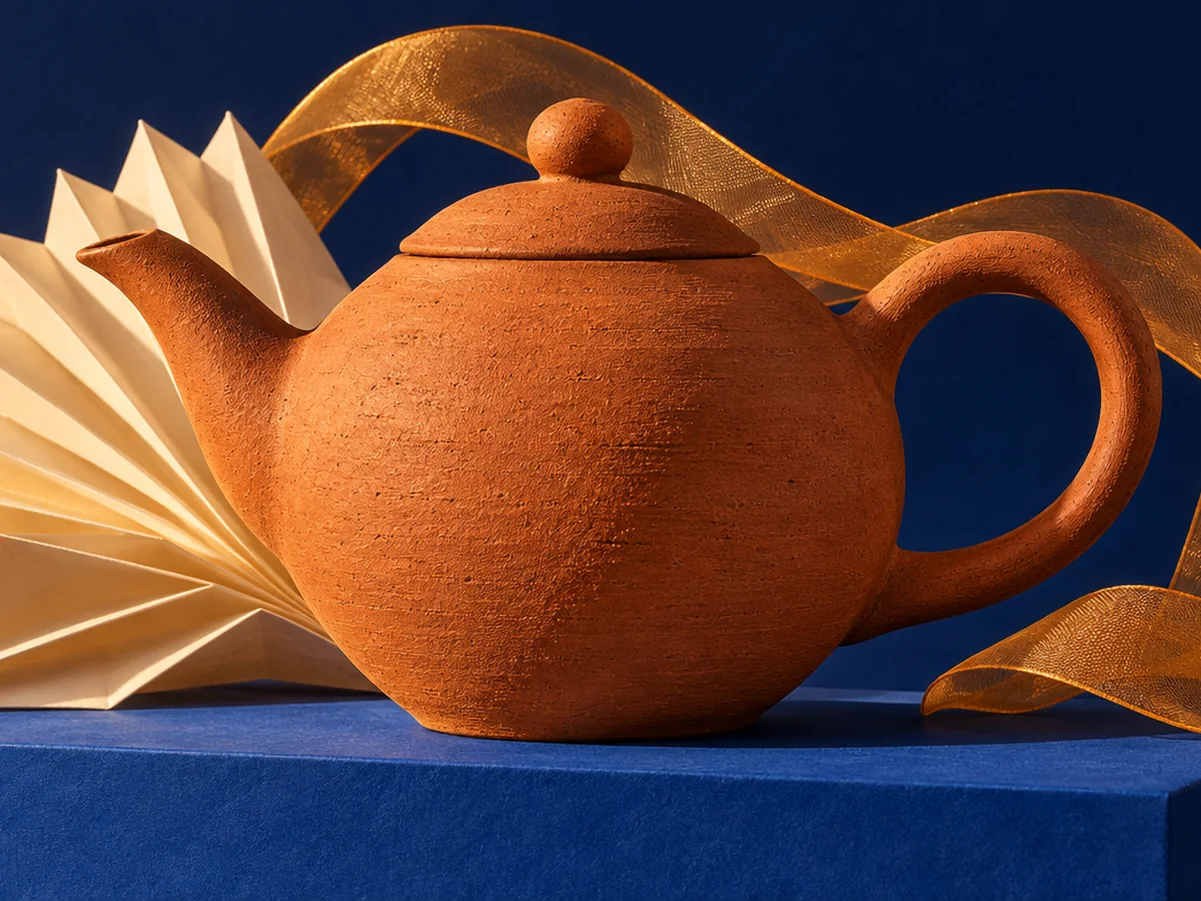
The following briefs isolate the announced changes: revision stability, transparent assets, and realism with small text. The cover and four examples below were generated with GPT Image 2.6 using these prompts; they are illustrations of the briefs, not Seedream 5.5 outputs or a cross-version quality ranking. The cover shows an amber bottle between an ivory dish and cream linen, while the later examples show a blue dish, coral linen, a lemon branch and a cafe menu. Seedream 5.5 result to be added.
Method: what stays fixed, and what these examples can show
The briefs target 1K, 16:9, but these targets are not verified ChatCut Seedream settings or the dimensions of every illustration. For a Seedream run, select Seedream 5.5 and record the size, ratio, background options and prompt-enhancement setting actually exposed, along with the downloaded dimensions and generation record. The GPT Image 2.6 examples do not establish those settings for Seedream.
For the edit case, use the cover as the source, then pass each result into the next edit. Keep the prompt wording and settings recorded; compare every revision against both its immediate input and the cover. Preserve any drift in the published example. The other briefs start from text alone, and the alpha prompt explicitly requests transparency; this does not confirm that ChatCut exposes a particular background control.
There are no cross-version latency measurements, success rates or scores here. A future head-to-head must use the same prompt, source files, pixel dimensions, ratio, output format and exposed settings, with each version following its own edit chain. Use a common supported size; the requested 1K test target cannot be compared directly with a provider’s 2K-only 4.5 route.
1. Revisions: does the product stay intact?
Upgrade to evaluate: keeping previously approved detail through further changes. ByteDance’s launch demonstration chains 100 edits on one portrait. The shorter sequence below defines a local-edit test; the GPT Image 2.6 illustrations cannot validate Seedream’s edit-stability claim.
Prompt 0 — cover and unedited baseline. The opening cover, generated with GPT Image 2.6, shows the intended baseline. It has an amber bottle with a brass cap, an ivory dish on the left and cream linen on the right. Use it as the source when reproducing the edit brief; record the actual settings for your selected model.
Prompt 1 — change one prop. Supply cover as the only reference.

Observation: In this GPT Image 2.6 example, the dish is cobalt blue and the bottle retains amber glass and a brass cap, but the bottle occupies less of the frame than in the cover and more of the window shadow and right-hand linen are visible; Seedream 5.5 result to be added.
Prompt 2 — edit the previous result. Supply edit-blue, not the cover. This defines the intended chained revision; the illustrations do not establish a completed Seedream edit chain.

Check: compare the bottle outline, cap texture and shadow boundaries against Prompt 0. A successful requested change does not excuse an altered product.
Observation: In this GPT Image 2.6 example, the blue dish remains and the linen is coral, with broadly matching folds and bottle placement relative to the blue-dish example, while the wider framing still differs from the cover; Seedream 5.5 result to be added.
For older-version examples, open ByteDance’s Pro editing showcase or 4.5 reference-editing gallery. These are vendor examples with different briefs, not matched controls for our scene.
2. Transparent assets: does the file contain usable alpha?
Upgrade to evaluate: generating a reusable asset with transparency. The 5.5 announcement describes native RGBA output. Pro’s earlier transparent layer separation is a different operation; do not describe it as having no transparency capability at all.
Prompt 3 — a cutout with fine gaps and translucent material. Select Seedream 5.5 and request transparency in the prompt. Check the background options and download formats offered in your session, then verify alpha in the original file before treating the asset as a transparent-generation test.

Check: inspect the original file over black and white, including the gaps and bow. A drawn checkerboard is not alpha. Keep that original for compositing and preserve alpha when preparing the article WebP.
Observation: The GPT Image 2.6 example shows two yellow lemons, three veined green leaves and a fine-mesh gold bow, but blocky horizontal fringes surround the cutout, so it is not a clean compositing asset despite the alpha channel reported in both source PNG and article WebP; Seedream 5.5 result to be added.
3. Realism and small text: does the scene work beyond first glance?
Upgrade to evaluate: natural materials and exact copy in the same deliverable. Use a compact menu rather than judging a large headline alone.
Prompt 4 — a photographed cafe menu. Start a new generation with no reference image.
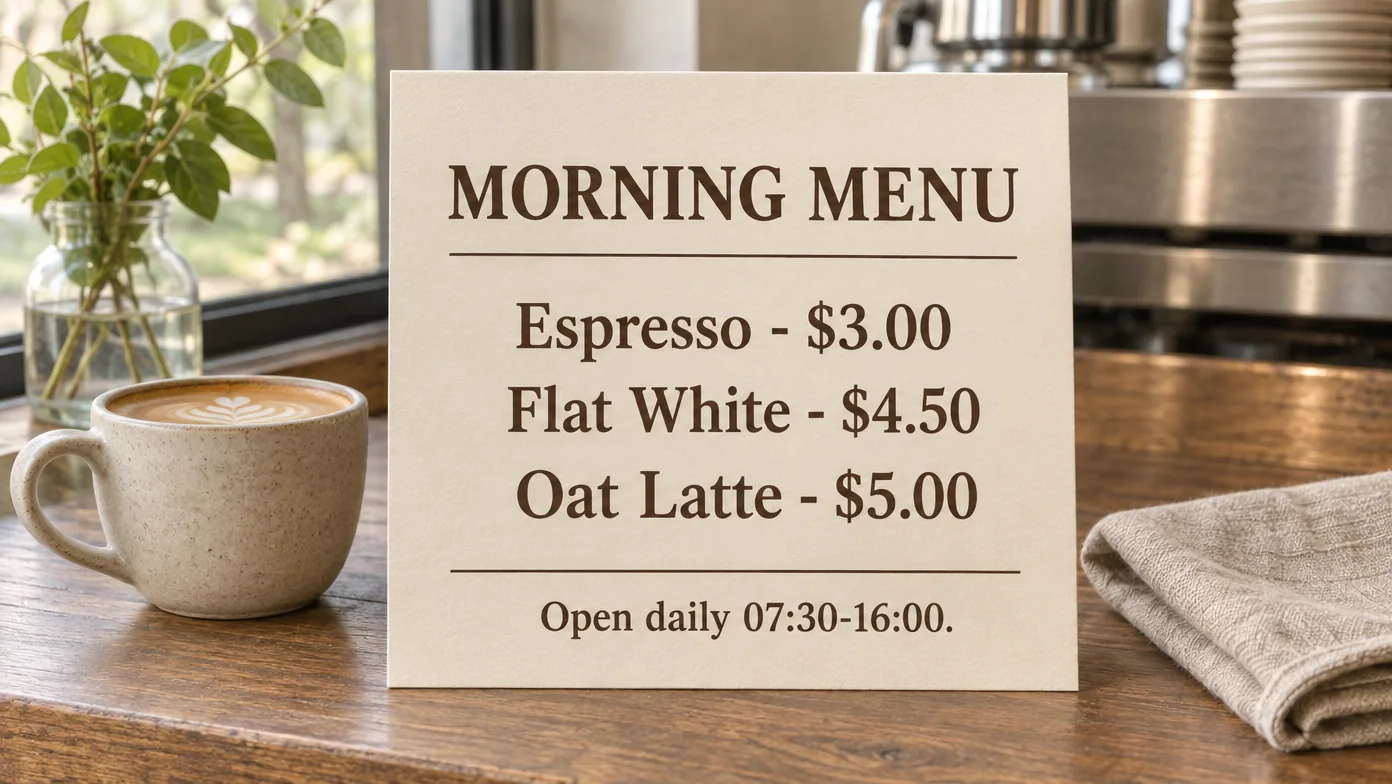
Check: transcribe the menu character by character, especially prices and opening hours. Inspect contact shadows, ceramic texture and linen at the original size. Keep final copy in an editable text layer when future changes are likely.
Observation: The GPT Image 2.6 menu reproduces the heading, all three drink names and prices, and the opening hours, but adds a period after 16:00; the cup has visible speckling and latte art rather than plain espresso, the napkin weave is visible, and soft contact shadows sit beneath the objects; Seedream 5.5 result to be added.
For more briefs, see Seedream 5.5 prompts. For setup, use the Seedream 5.5 getting-started guide.
Seedream 5.0 Pro, Seedream 4.5 and 5.5 pricing
Public prices checked November 12, 2026. These are listed rates, not completed purchases. Compare within a row: dollars, platform credits and Gems are different units. The specification tables above come from documentation; the price examples below do not imply identical output quality.
| Provider and request | Seedream 5.5 | Seedream 5.0 Pro | Seedream 4.5 | Public source and conditions |
|---|---|---|---|---|
| BytePlus, single-image generation | No matching standard 5.5 rate established from this rate card | $0.045 up to 2.61 million pixels; $0.09 above that | $0.04/output, inputs free | ModelArk rate card. Pro includes the first input; later inputs cost $0.003 each. Layer decomposition has separate rates. |
| Higgsfield, 1K output | 2.5 credits | 1.5 credits | Not priced here | Published settings and credits. Same size; account offers and selected options can affect the quote. |
| Mage, 2K output, no references | 42 Gems | 135 Gems | 60 Gems | Mage’s model comparison. Metered prices; separate unlimited-plan benefits are not a Gems exchange rate. |
| WaveSpeed, 1K edit with one reference | $0.028 | $0.045 | Not priced here | Documentation list prices for 5.5 Edit and Pro Edit, before displayed promotions. |
If a “Seedream 5.0 price” result actually refers to Lite, the same BytePlus rate card lists $0.035 per output with free inputs. That is not Pro’s price. For ChatCut, select Seedream 5.5, attach any references and check the credit cost shown before generating; use that quote rather than converting another provider’s dollar price into ChatCut credits.
Why reference-image count can reverse the price comparison
At WaveSpeed’s published 1K list rates, 5.5 costs $0.02 + $0.008 per input, while Pro costs $0.045 including the first input + $0.003 per additional input. That gives $0.028 vs $0.045 with one reference, but $0.100 vs $0.072 with ten. These are calculations from the 5.5 and Pro documentation, not our actual charges.
For an upgrade decision, record all paid attempts and editor time, then calculate spend per approved asset. A lower request price can disappear into repeated corrections. For trials and subscription conditions, see Seedream free access.
Which Seedream version should you use?
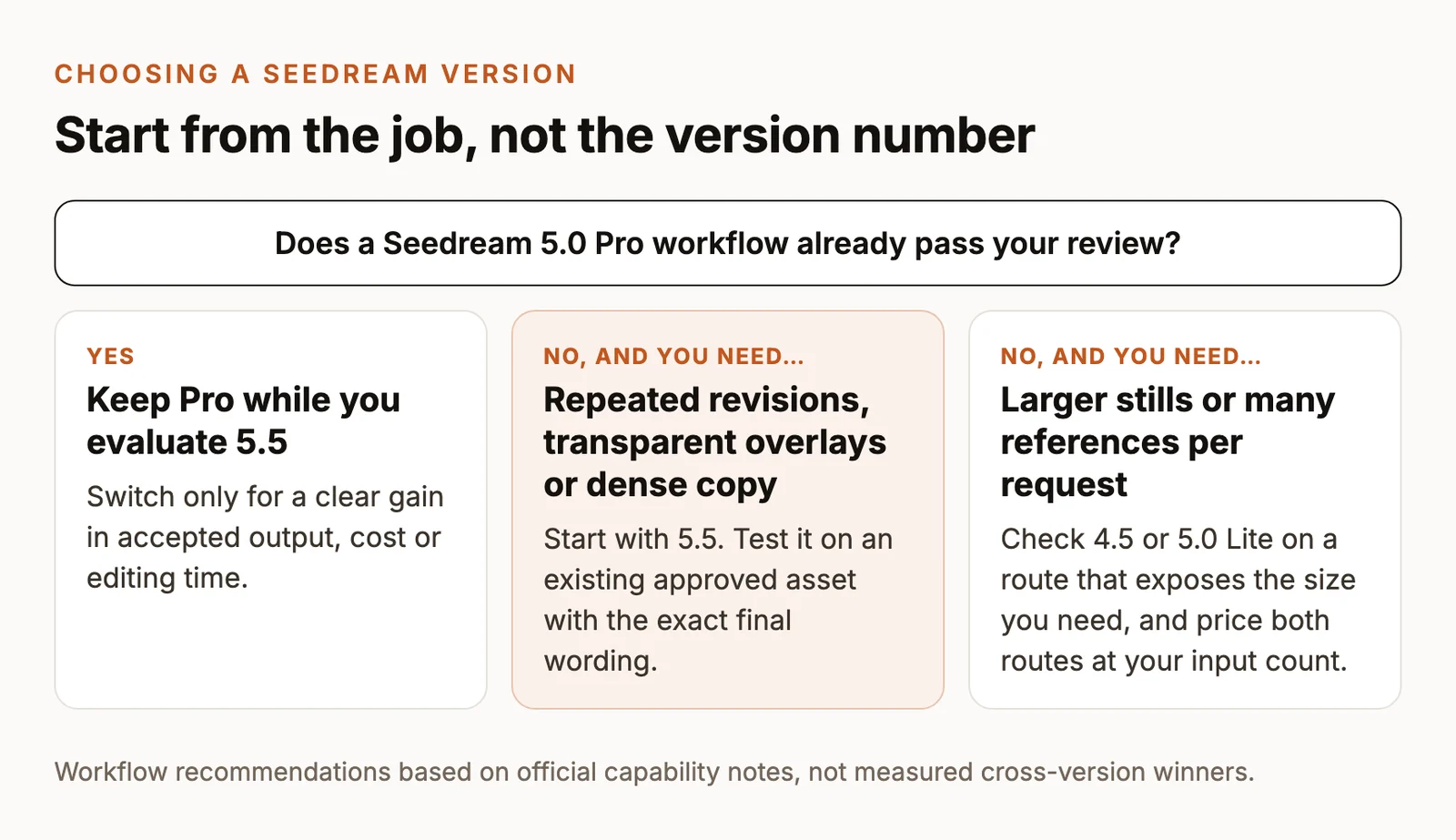
| Your requirement | Start here | What would justify switching? |
|---|---|---|
| Repeated client revisions | Evaluate 5.5 on an existing approved asset | More requested changes pass without altering the product or layout |
| Transparent overlays or reusable cutouts | A 5.5 route with verified alpha output | Clean edges and partial transparency remove a separate cleanup step |
| Dense copy in a photographic creative | Evaluate 5.5 using the exact final wording | Correct copy and usable materials at the delivery size |
| A Pro workflow that already passes review | Keep Pro while you evaluate | A clear improvement in accepted output, cost or editing time |
| A larger still image | Check 4.5 or Lite on a route exposing the required size | Actual dimensions and visual detail satisfy the destination |
| Many references per request | Calculate both routes at that input count | The total bill improves, including inputs and retries |
These are workflow recommendations, not measured cross-version winners. For options outside the family, see Seedream vs Nano Banana vs GPT Image and our AI image generator comparison.
Use the approved 5.5 image in a ChatCut video
Seedream 5.5 is available in ChatCut’s web editor, desktop app and Agent-plugin workflow. Generate the still in your project, place it on the timeline, or use it as a first frame for Kling 4.0 or Seedance 2.5. Then add captions, voiceover and music and export; our AI video prompts explain how to describe the motion.
Keep transparent assets as overlays when that is the intended use; do not assume that image-to-video output preserves alpha. If the brief calls for another image model, GPT Image 2.6 is another ChatCut option; the GPT Image prompt guide covers how to specify references and exact copy.