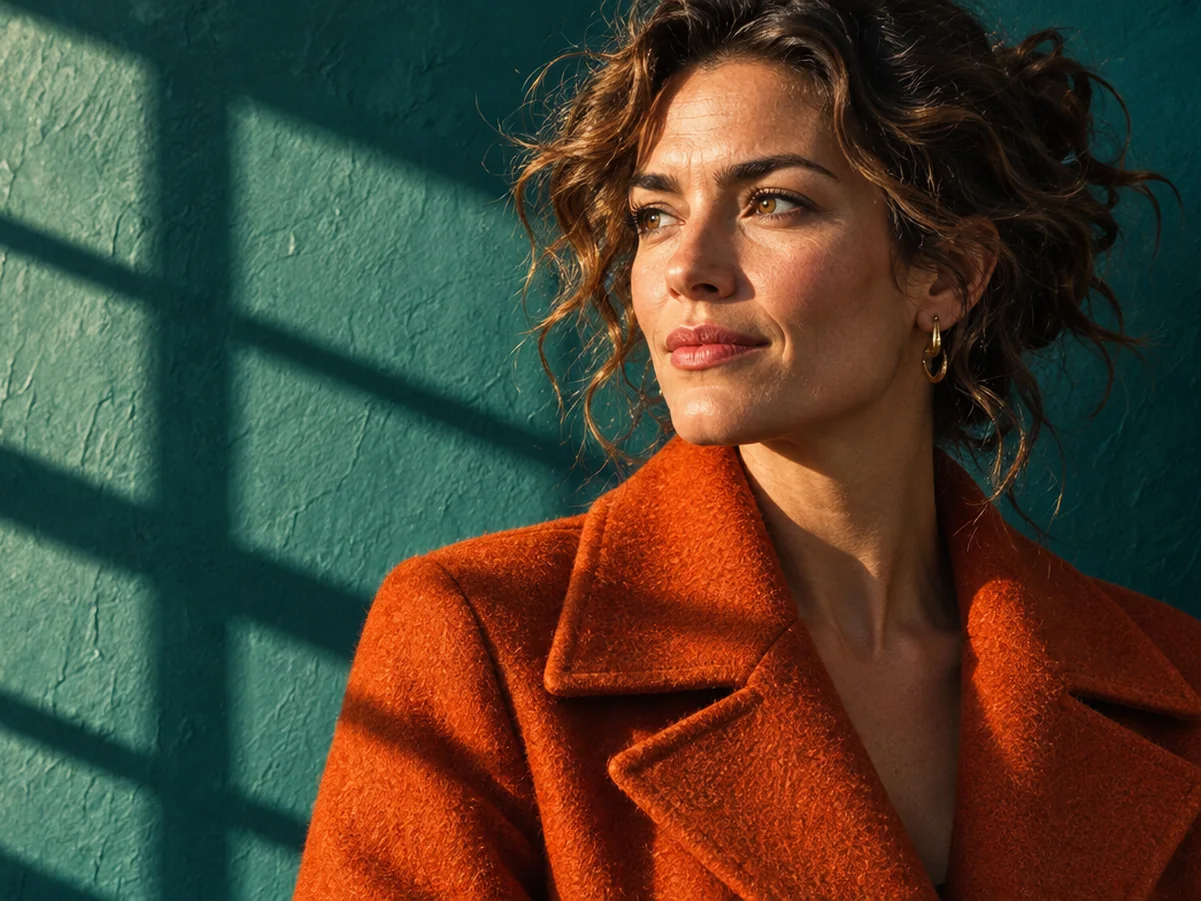
Seedream is ByteDance’s family of AI image models for creating pictures from text and editing them with reference images. The latest release is Seedream 5.5, announced on November 9, 2026, with steadier successive edits, native transparent assets, more natural textures, and clearer small text. You can use it in ChatCut now, then take the image into a video project. ByteDance’s announcement
Key Takeaways
- Start with Seedream 5.5 for a new image project involving portraits, product visuals, text, or repeated revisions. ChatCut now includes it in the editor.
- Choose by the job. Lite introduced stronger reasoning and search-enhanced creation. Pro emphasized dense layouts and spatially guided edits. Keep an approved older workflow as a reference when evaluating an upgrade.
- Check the full model name. A generator labeled “Seedream 5” can leave the Lite or Pro version unclear. Confirm the version and the controls offered by that platform.
What is ByteDance Seedream AI?
ByteDance’s Seed team develops the models. A Seedream AI image generator is the application that gives you access to a particular version, with its own model menu, reference-image controls, exports, and billing. The official model pages describe the underlying capabilities, while the application determines which of those features you can use. ByteDance Seed model page
Use the version number to understand the model’s place in the family, then check your intended workflow against the tables below.
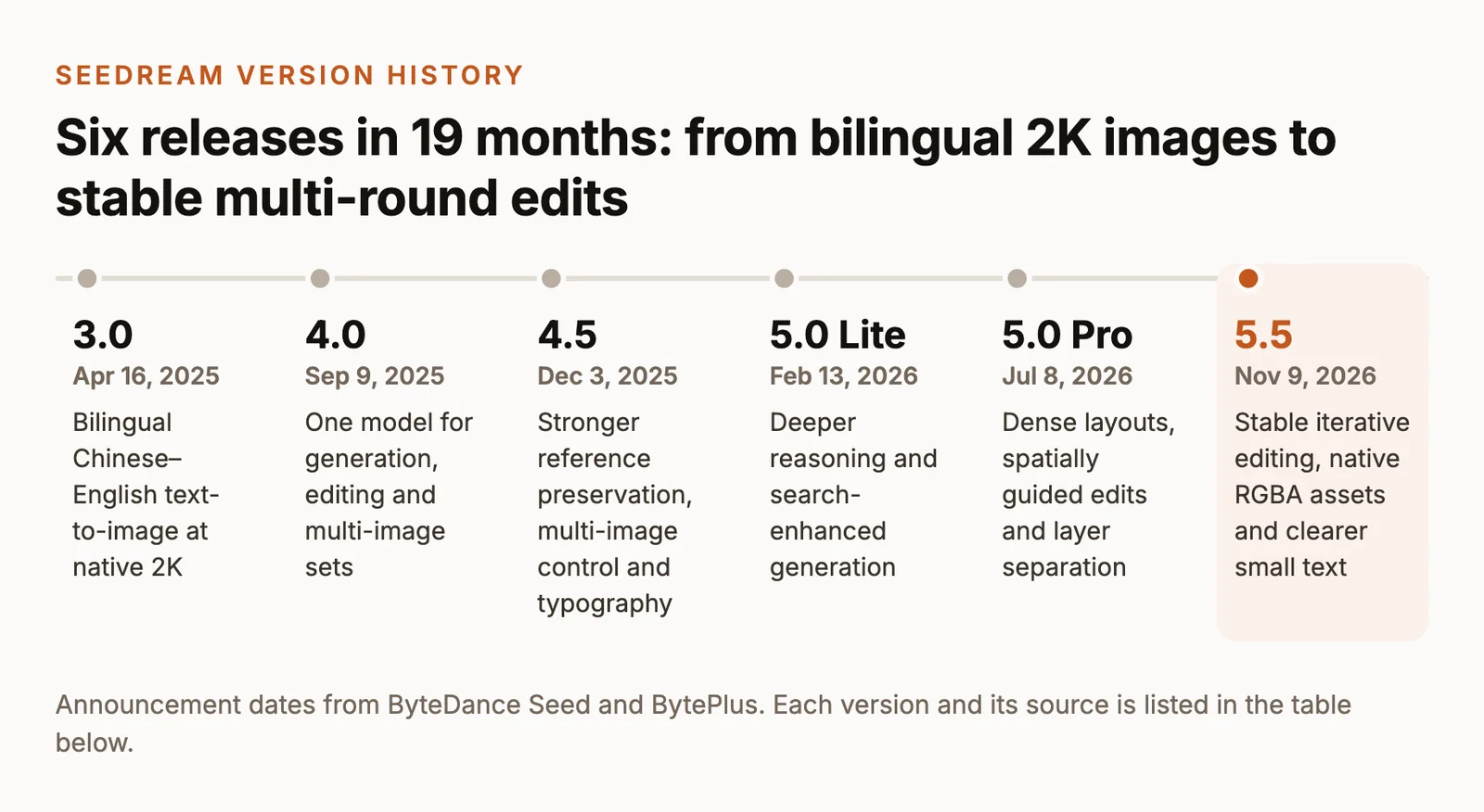
Seedream timeline from 3.0 to 5.5
Each row gives the generation’s defining change in one sentence. Dates link to public announcements, and the access column links to the named version or its current status.
| Seedream model | Announcement date | Capability in one sentence | Best starting use | Access or status |
|---|---|---|---|---|
| 3.0 | April 16, 2025 | Bilingual Chinese–English text-to-image generation delivers native 2K images with improved lettering and layout. | Reviewing earlier prompts and archived images | fal’s v3 endpoint is deprecated. |
| 4.0 | September 9, 2025 | A unified model combines generation, image editing, and multi-image creation, with output up to 4K. | Maintaining a generation-and-editing workflow | fal 4.0 playground and API |
| 4.5 | December 3, 2025 | Stronger reference preservation, multi-image control, and typography improve consistency in detailed designs. | Product and portrait edits anchored to references | fal 4.5 playground and API |
| 5.0 Lite | February 13, 2026 | Deeper reasoning and online-search enhancement support knowledge-based and time-sensitive visual briefs. | Diagrams and factual briefs with verified source material | fal 5.0 Lite playground and API |
| 5.0 Pro | July 8, 2026 | Dense information layouts, spatially guided edits, layer separation, and multilingual text expand design control. | Infographics and annotation-guided design work | OpenArt 5.0 Pro |
| 5.5 | November 9, 2026 | More stable iterative editing, native RGBA assets, and improved realism and small text support reusable production visuals. | New image projects, revisions, and compositing assets | ChatCut and Dreamina |
The 3.0 date matches its official launch-page record and technical-report announcement. The 4.5 announcement describes open-beta availability through BytePlus ModelArk. 3.0 launch page, 4.5 availability announcement
What changed with Seedream 5.5?
ByteDance demonstrates 100 successive edits with each output becoming the next input. It also introduces alpha-channel output for fully or partly transparent assets and describes improvements to photographic textures and crowded lettering. The longer sequence is a manufacturer demonstration. For a practical editing check, compare the face, lighting, and background after the single-change prompt below. Official 5.5 introduction
Our Seedream 5.5 release and getting-started guide covers the new generation in more detail.
Which Seedream model should you choose?
Match the model to the asset you need to deliver. These choices follow the documented capability changes in the timeline.
| Your task | Start here | What to inspect before accepting the image |
|---|---|---|
| A new portrait, product visual, or campaign image | 5.5 | Skin texture, reflections, material detail, and the final crop |
| Revising an approved image through several changes | 5.5 | The requested change, plus faces, objects, and lighting outside it |
| A standalone asset for compositing | 5.5, through a host with alpha export | The actual alpha channel and edges over light and dark backgrounds |
| A dense infographic or a design directed by annotations | 5.0 Pro, then evaluate 5.5 on the same brief | Reading order, spelling, factual content, and placement of each edit |
| Knowledge-based visuals needing search support | 5.0 Lite, through a host exposing that capability | Retrieved facts and every label in the final graphic |
| An established 4.0 or 4.5 pipeline | Your approved version, alongside a newer candidate | Reference fidelity and compatibility with the existing workflow |
Seedream 5.0 Lite or Pro?
Lite’s launch emphasized reasoning and real-time search enhancement. Pro arrived separately with stronger support for information-heavy layouts and interactive editing. Check the host’s controls for search, annotations, and layers when those features determine your choice. Lite introduction, Pro introduction
For an existing Pro project, use our Seedream 5.5 versus 5.0 Pro guide. To evaluate other families, see GPT Image 2.6, the Seedream, Nano Banana, and GPT Image comparison, and our best AI image generators guide.
How to compare versions on your own brief
Use the same prompt, exact output dimensions, aspect ratio, reference files, background mode, and matching quality settings. For an edit comparison, give every candidate the same source image. Record the model, host, settings, attempts, and charge for each output, then inspect the same text and image regions. Resolve settings differences before drawing a quality conclusion.
Seedream 5.5 image prompts and examples
These briefs cover a portrait, a controlled revision, a text-led poster, and a transparent object. The examples below were generated with GPT Image 2.6 to illustrate the prompts; Seedream 5.5 results will be added. They do not establish Seedream image quality or editing fidelity. To try the prompts in ChatCut, pick Seedream 5.5 in the model menu and review the available size, ratio, and credit cost before generating.
Prompt 1 — An editorial portrait with natural textures
Use this as the source image for Prompt 2. Keep the full output so the face, cardigan, workbench, and lighting can be checked after the edit.
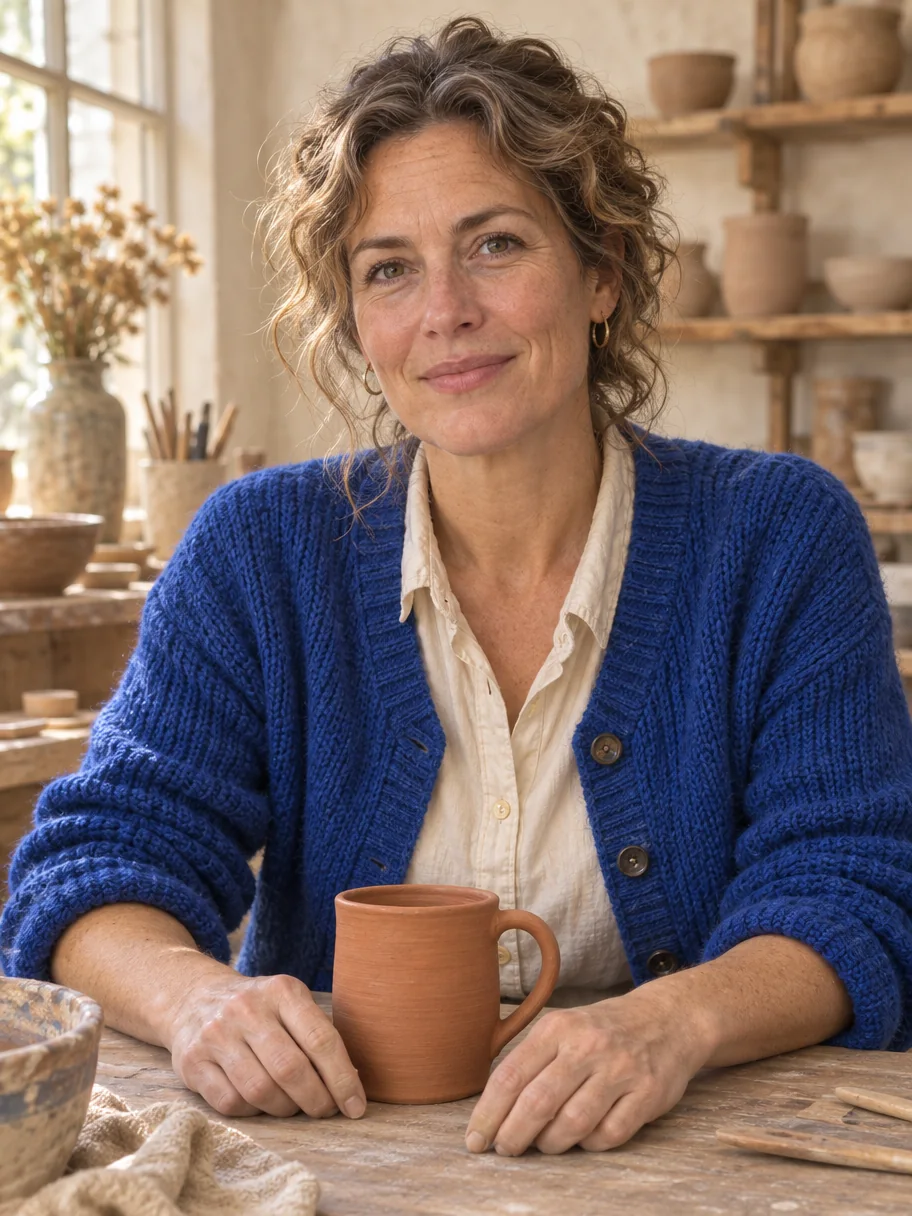
In this GPT Image 2.6 example, the cobalt cardigan has distinct knit loops and dark buttons, while left-side window light highlights the face and the terracotta mug sits between the hands.
Inspect the skin texture, fingers, knit detail, and the direction of the light.
Prompt 2 — Change one detail in the portrait
Attach the exact output from Prompt 1 as the reference image. Keep the source dimensions and generation settings for this revision.
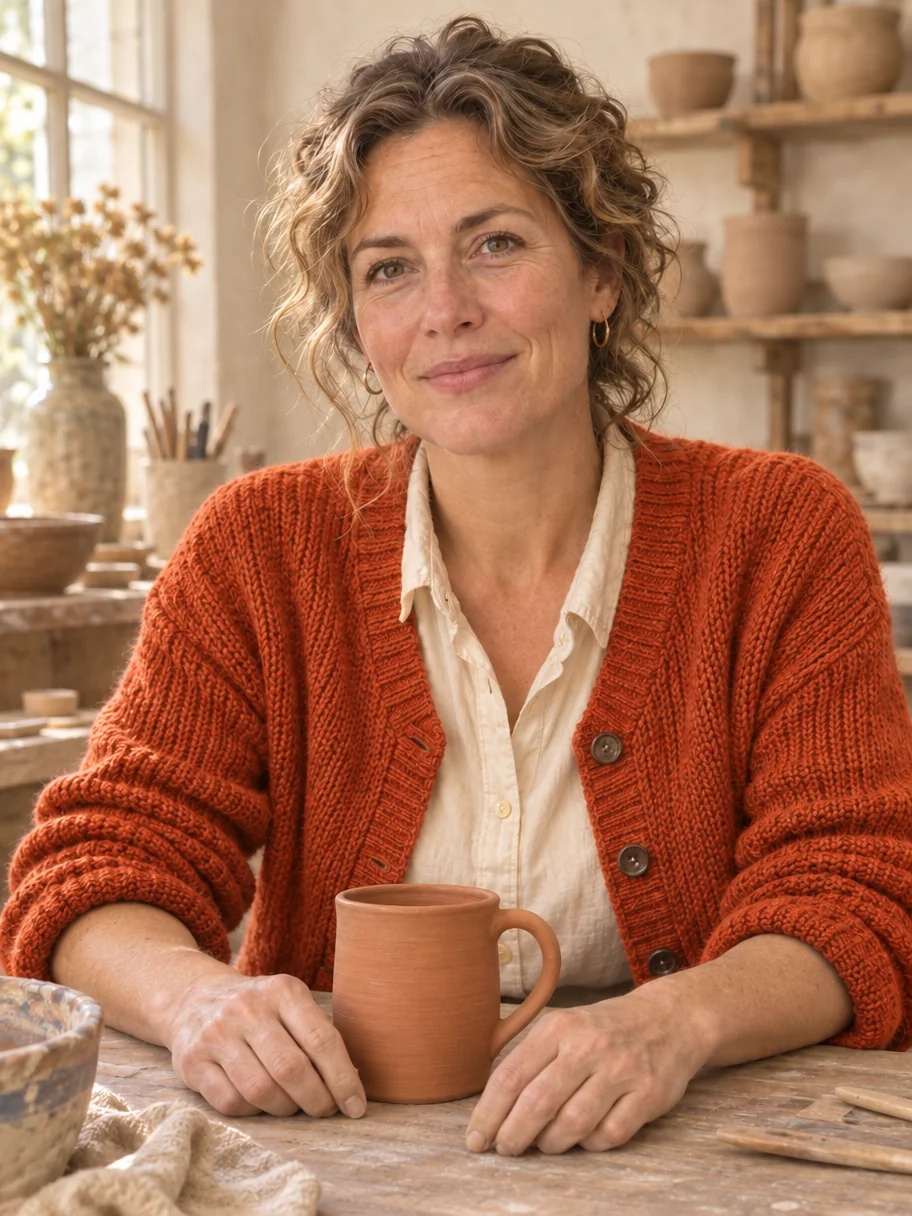
In this GPT Image 2.6 edit, the cardigan is rust orange, while the face, hand positions, mug handle, and pottery shelves remain closely aligned with the blue-cardigan example.
Inspect the cardigan boundary and compare the face, hands, mug, and background with Prompt 1.
Prompt 3 — A poster with exact headline and smaller copy
Put the required words, their order, and their placement into the prompt. Proofread the downloaded image at its intended display size.
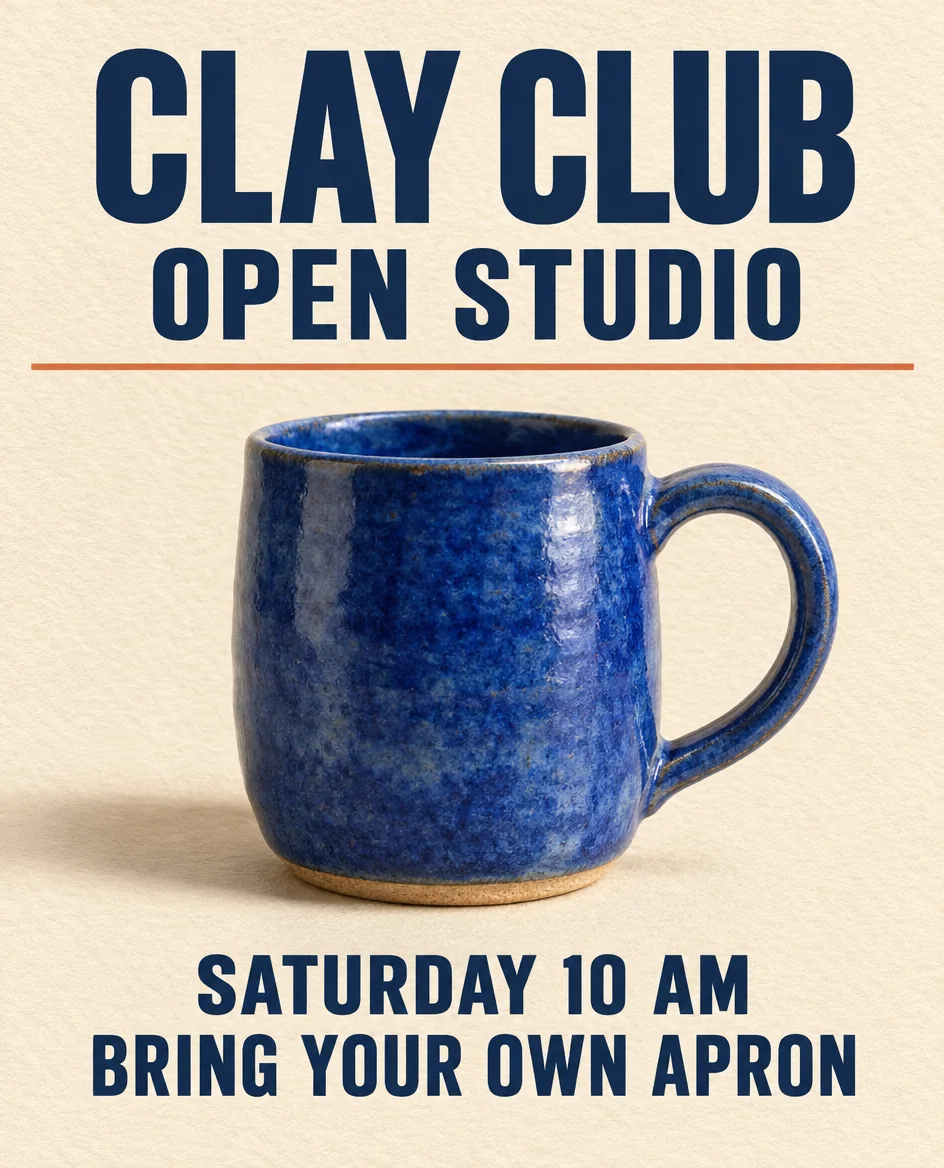
In this GPT Image 2.6 example, all four requested text lines are legible and correctly spelled, with the blue mug between the upper headings and the two lower lines.
Inspect every letter in all four lines, their order, and the space around the mug.
Prompt 4 — A transparent glass asset
Use the native transparent-output control when the host exposes it. Inspect the downloaded alpha channel and place the asset over both a pale and a dark background.
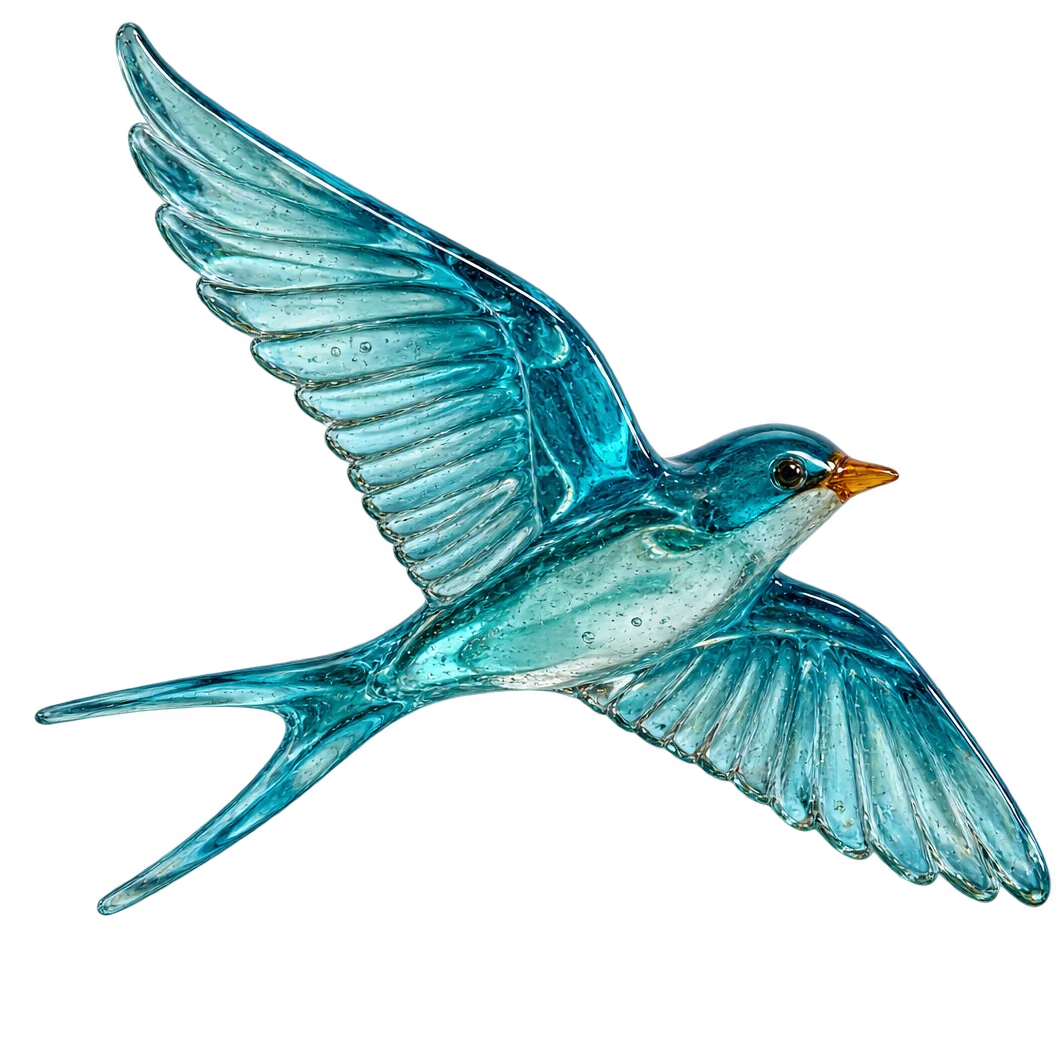
In this GPT Image 2.6 example, the cyan glass swallow has an amber beak, visible bubbles, a forked tail, and bright feather edges; the preview alone does not verify a usable alpha channel.
Inspect the outer silhouette and the partially transparent glass inside it.
Cover illustration and an additional product-photo prompt
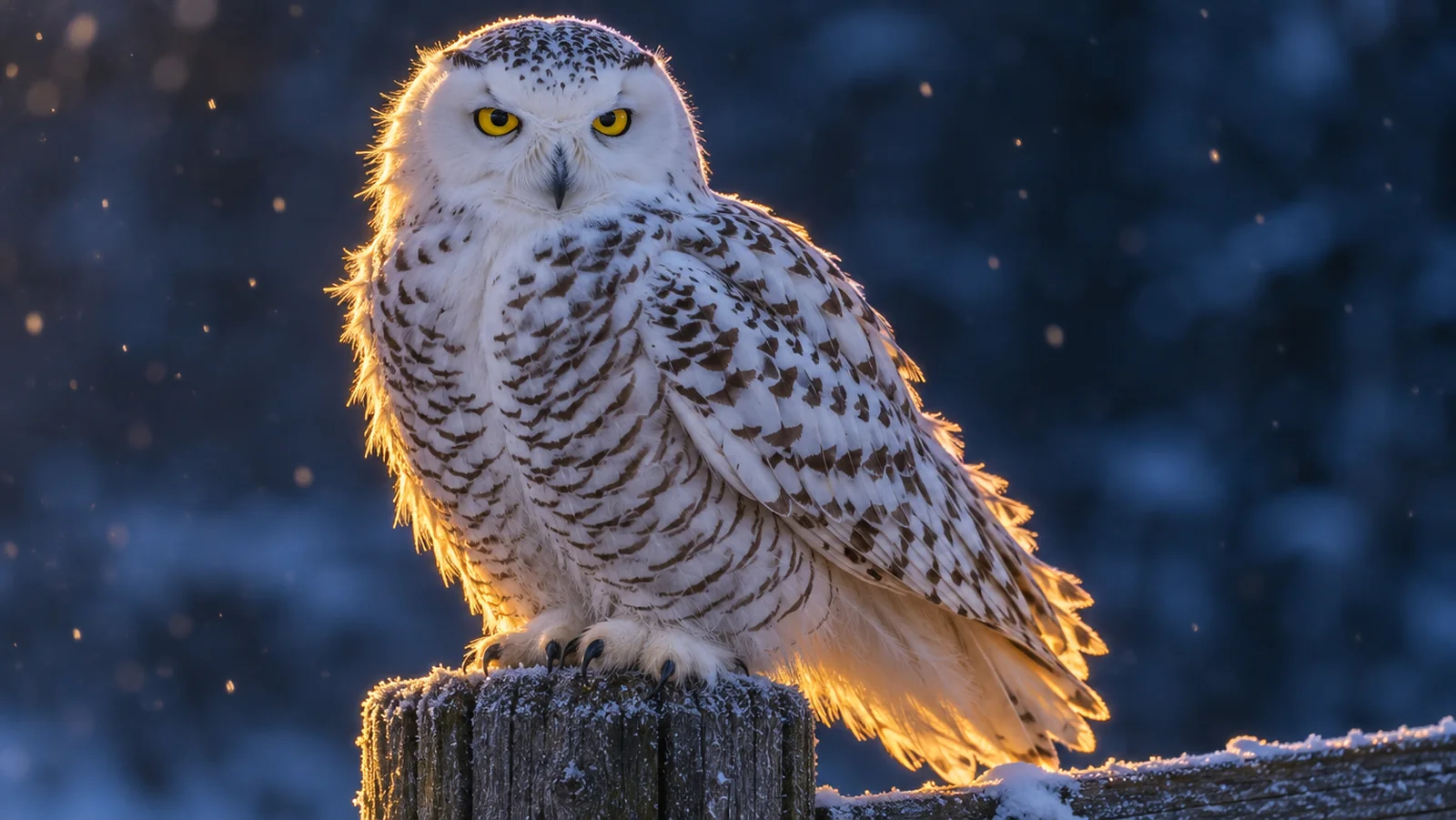
The current cover is a GPT Image 2.6 illustration of a snowy owl on a frosted post, with golden rim light against a dark-blue background. It is not a Seedream 5.5 output and does not depict the perfume-bottle prompt below. Seedream 5.5 results will be added. The following is a separate product-photo prompt to try; select Seedream 5.5 and review the available settings before generating.
Find more briefs in our Seedream 5.5 prompt guide.
Where can you use the Seedream AI image generator?
Choose an application according to what happens after generation. A browser generator provides an image-creation workspace. An API route supports integration into your own software. ChatCut connects image generation with an editable video project.
| Access route | Version or workflow | Where to start |
|---|---|---|
| ChatCut | Seedream 5.5 in the web editor, desktop app, and Agent-plugin workflow | Seedream 5.5 in ChatCut |
| Dreamina | A consumer creation interface explicitly naming Seedream 5.5 | Dreamina 5.5 |
| fal | Separate playground/API listings for 4.0, 4.5, and 5.0 Lite | Use the exact-version links in the timeline. |
| OpenArt | A version-specific 5.0 Pro generator entry | OpenArt 5.0 Pro |
The external links were checked on November 12, 2026. Review the selected model and available controls in your account before generating.
Seedream 5.5 settings and cost in ChatCut
Select Seedream 5.5 for image generation and paste a prompt, or supply the source image for an edit. The settings to confirm for this workflow are listed below. Our image-generation guide explains the project workflow.
| ChatCut setting | Detail to confirm |
|---|---|
| Available output sizes | Pick Seedream 5.5 in the model menu and review the available output sizes before generating; check the downloaded file for its actual pixel dimensions. |
| Available aspect ratios | Choose from the aspect ratios shown for Seedream 5.5 before generating, and match the framing to your intended placement. |
| Native transparency | Check whether the selected workflow offers transparent output and which export formats preserve it; verify the downloaded alpha channel over light and dark backgrounds. |
| Cost per image | Review the credit cost shown for your selected settings and reference inputs before generating; check the quote again when changing the request. |
For free access and plan conditions, see our Seedream free-access guide.
Take a Seedream image into video
Generate the still in ChatCut and use it on the project timeline, or pass it as a first frame to Kling 4.0 or Seedance 2.5. Describe the movement you want, then edit the returned clip and add captions, voiceover, and music before export. Kling 4.0, Seedance 2.5
Follow our AI image-to-video workflow for the full sequence and use the image-to-video prompt library to write motion instructions.